
The Apprenticeship Service: Setting permissions for SBC Training
Once your Apprenticeship Service account is set up, the next step is to give SBC Training the right permissions. This allows us to support you with managing your vacancies and apprentices, saving you time and ensuring everything runs smoothly.
Step-by-step: how to set permissions
1. Sign in to your account
Go to the GOV.UK Apprenticeship Service and sign in using your login details.
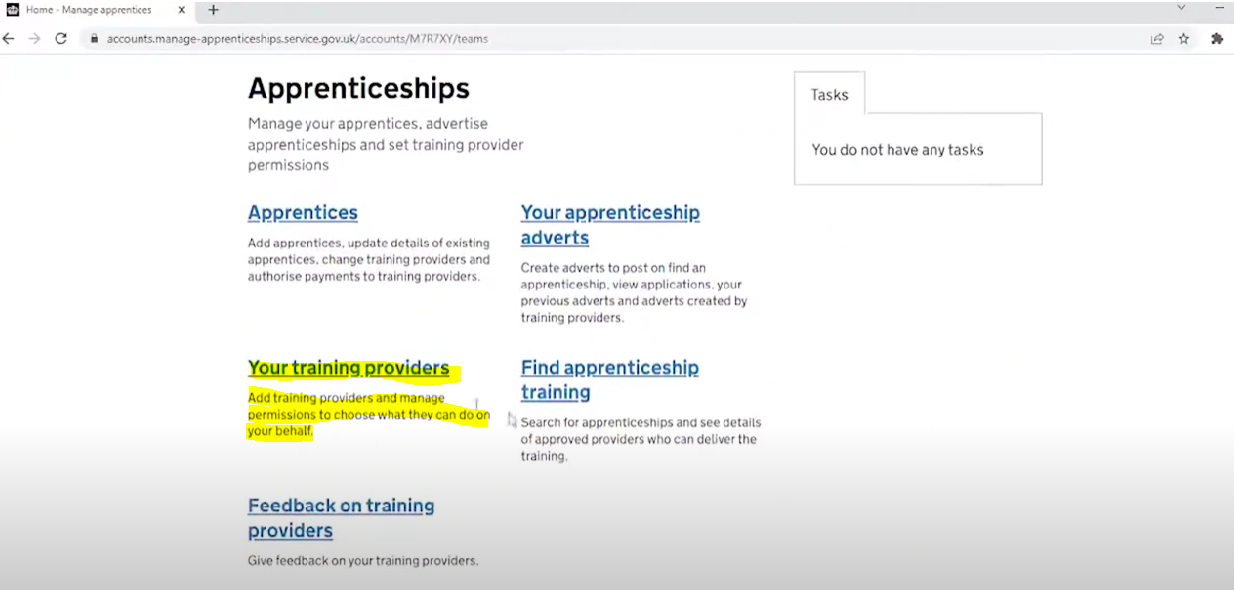
2. Go to your training providers
From your homepage, select “Your training providers” to view the providers linked to your account.
3. Add SBC Training (if needed)
If SBC Training is not already listed, you can add us using our UKPRN:
10033746
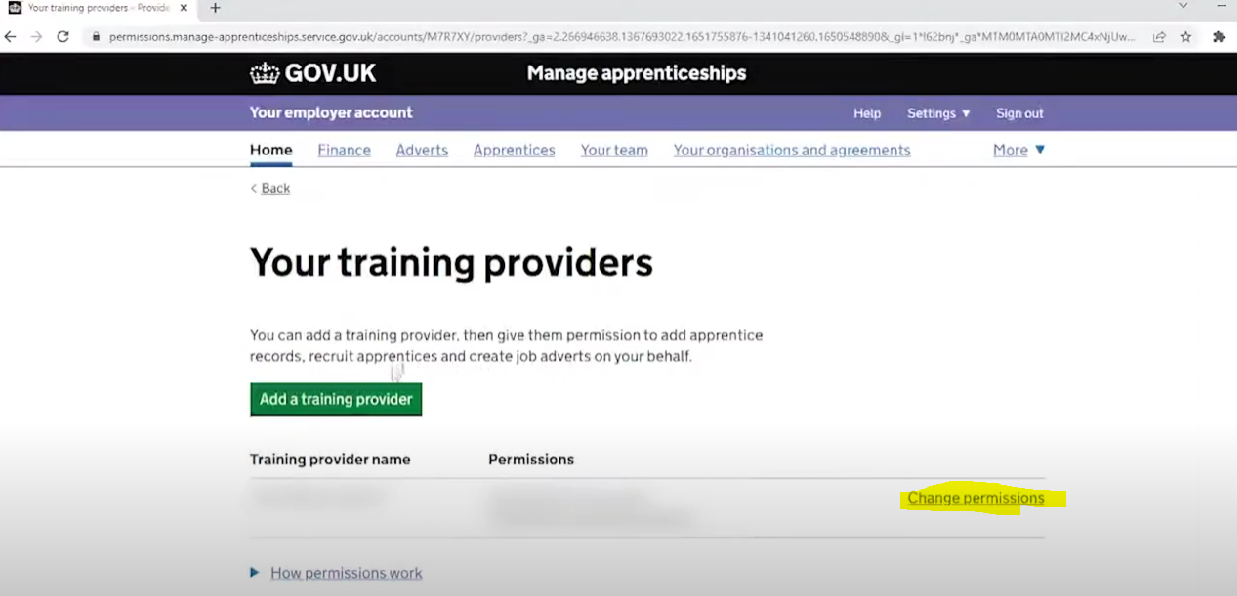
4. Set permissions
Find SBC Training in your provider list and click “Set/change permissions”.
5. Choose the right level of access
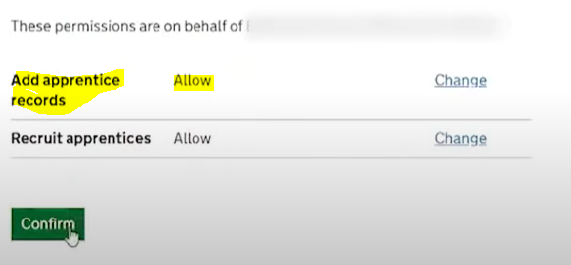
We recommend selecting:
Add Apprentice Records – Allow
Recruit Aapprentices - Allow
This gives us permission to advertise and manage vacancies on your behalf, reserve funding and add apprentice details on your behalf, making the process quicker and easier for you.
6. Confirm your changes
Click Continue, then Confirm to save your permissions.
How SBC Training supports you
Giving us the right permissions means we can:
- Set up apprentice records for you
- Reserve funding quickly and accurately
- Help avoid delays in onboarding your apprentices
- Provide a FREE recruitment service for your vacancies
You stay in control at all times, and you can change permissions whenever you need.
Next steps...